Chapter 18 · Using the MariaDB Database Management System
Chapter Overview
Following Oracle's acquisition of the MySQL database project, it gradually transitioned from open-source to proprietary software. This shift prompted numerous enterprises and vendors to adopt MariaDB, an emerging database management system. Leveraging its open-source nature and stability, MariaDB rapidly gained market share, becoming a popular alternative to MySQL.
This chapter first introduces fundamental theoretical knowledge about databases and database management systems, then delves into the features and capabilities of the MariaDB database management system. Readers will learn through hands-on exercises how to perform routine operations in MariaDB, including user creation and management, permission authorization, creating new databases and database tables, as well as executing database operations such as insert, delete, update, and query. Additionally, this chapter provides detailed coverage of database backup and recovery methods, ensuring readers not only master CRUD operations but also become proficient in database management and maintenance within production environments.
18.1 Database Management Systems
A database is a repository that stores data according to a specific structure. In today's era of rapid big data technology development, massive amounts of information are generated daily on the internet. Database technology has evolved from its initial simple tabular data storage model to today's large-scale distributed storage models. Effectively managing and utilizing this data to extract its value is a crucial prerequisite for scientific research and decision-making management. Databases serve as the core component of various information management systems, office automation systems, and decision support systems, acting as key tools for data management and analysis.
A database management system (DBMS) is a software program enabling operations such as searching, modifying, deleting, and maintaining data stored within a database. By converting concrete physical data within a computer into abstract logical data understandable to users, it effectively lowers the technical barrier to database management. Consequently, even engineers engaged in Linux operations and maintenance can perform basic database management tasks.However, Instructor Liu Chuan must remind readers that this book's primary technical focus remains Linux system operations and maintenance. Database management systems represent a branch of this core subject that expands both horizontally and vertically in depth. One cannot expect to master database management techniques in a day or two. If readers develop a strong interest in database management after completing this chapter and aspire to pursue a related career, they will need to develop a detailed, dedicated study plan.
When discussing database management, MySQL is unavoidable. As a database management system with an extremely high global market share, MySQL is renowned for its technical maturity, simple configuration, and excellent scalability.However, following Oracle's acquisition of MySQL's parent company SUN in 2009, the MySQL database project came under Oracle's umbrella. It gradually evolved into a software system that "retains its open-source identity while holding numerous commercial patents."Open-source software represents the collective wisdom contributed by global hackers, geeks, programmers, and other technical experts under the banner of open-source communities. Seeing their labor commercialized by other companies naturally wounded the hearts of many open-source contributors. Consequently, the founders of the MySQL project developed a new database management system called MariaDB.
The logos for MariaDB and MySQL are shown in Figure 18-1.
Figure 18-1 Logos of MariaDB and MySQL Database Management Systems
MariaDB was developed by a team led by Michael Widenius, the founder of the MySQL project. According to the MariaDB official website, Widenius has two daughters: his eldest daughter is named My (hence the name MySQL), and his second daughter is named Maria. Therefore, he named this new software MariaDB, continuing the family naming tradition.
Why is the Software Called MariaDB?

The 'MySQL' name is trademarked by Oracle, and they have chosen to keep that trademark to themselves. The name MySQL (just like the MyISAM storage engine) comes from Monty's first daughter My. The first part of 'MySQL' is pronounced like the English adjective, even if this doesn't match the correct pronunciation of the Finnish name.

MariaDB continues this tradition by being named after his younger daughter, Maria.

The name Maria was initially given to a storage engine. After MariaDB was started, to avoid confusion, it was renamed to Aria. The new name was decided as a result of a contest.
MariaDB is currently maintained by the open-source community as a branch of MySQL, offering high compatibility with MySQL. It maintains consistency with MySQL APIs and commands. Additionally, MariaDB includes a new storage engine, Aria, designed to replace MyISAM. Consequently, MariaDB performs as effectively as MySQL in practical use.
Meanwhile, due to competitive dynamics and conflicting interests among major corporations, coupled with MySQL's gradual shift from open-source to closed-source following its acquisition, many companies have abandoned MySQL.Companies like Google and Wikipedia decided to migrate their MySQL database operations to MariaDB. Red Hat, the leader in Linux open-source systems, also chose MariaDB as the default database management system in its latest RHEL, CentOS Stream, and Fedora systems. Furthermore, Red Hat incorporated database knowledge into the RHCE certification exam.Subsequently, dozens of other popular Linux distributions (such as openSUSE and Slackware) have made similar announcements.
Frankly speaking, even though IT industry giants have chosen to adopt the MariaDB database management system, this does not necessarily mean MariaDB has significant advantages over MySQL.After nearly two weeks of testing the differences between MariaDB and MySQL and conducting multiple performance benchmarks, Instructor Liu Chuan found no evidence of the pronounced advantages touted by the media. It can be said that MariaDB and MySQL perform nearly identically, and their operational commands are highly similar. From a practical standpoint, once you master MariaDB's commands and basic operations, you'll find it easy to adapt to MySQL databases in future work.
18.2 Initializing the MariaDB Service
Compared to MySQL, the MariaDB database management system offers numerous innovative extensions, such as microsecond-level support, thread pools, subquery optimization, and process reporting. After properly configuring the software repository, you can install and deploy the MariaDB database main program and server program.
root@linuxprobe:~# dnf install mariadb mariadb-server
Updating Subscription Management repositories.
BaseOS                                          2.7 MB/s | 2.7 kB     00:00
AppStream                                       2.7 MB/s | 2.8 kB     00:00
Dependencies resolved.
================================================================================
 Package                       Arch      Version             Repository    Size
================================================================================
Installing:
 mariadb                       x86_64    3:10.11.9-3.el10    AppStream    1.7 M
 mariadb-server                x86_64    3:10.11.9-3.el10    AppStream     10 M
Installing dependencies:
 mariadb-common                noarch    3:10.11.9-3.el10    AppStream     35 k
 mariadb-connector-c           x86_64    3.4.1-1.el10        BaseOS       214 k
 mariadb-connector-c-config    noarch    3.4.1-1.el10        BaseOS        10 k
 mariadb-errmsg                noarch    3:10.11.9-3.el10    AppStream    267 k
 mysql-selinux                 noarch    1.0.10-4.el10       AppStream     38 k
 perl-DBD-MariaDB              x86_64    1.23-6.el10         AppStream    159 k
 perl-File-Copy                noarch    2.41-510.el10       AppStream     22 k
 perl-Sys-Hostname             x86_64    1.25-510.el10       AppStream     20 k
Installing weak dependencies:
 mariadb-backup                x86_64    3:10.11.9-3.el10    AppStream    6.6 M
 mariadb-gssapi-server         x86_64    3:10.11.9-3.el10    AppStream     18 k
 mariadb-server-utils          x86_64    3:10.11.9-3.el10    AppStream    263 k
[... output omitted ...]
Installed:
  mariadb-3:10.11.9-3.el10.x86_64                 mariadb-backup-3:10.11.9-3.el10.x86_64
  mariadb-common-3:10.11.9-3.el10.noarch          mariadb-connector-c-3.4.1-1.el10.x86_64
  mariadb-connector-c-config-3.4.1-1.el10.noarch  mariadb-errmsg-3:10.11.9-3.el10.noarch
  mariadb-gssapi-server-3:10.11.9-3.el10.x86_64   mariadb-server-3:10.11.9-3.el10.x86_64
  mariadb-server-utils-3:10.11.9-3.el10.x86_64    mysql-selinux-1.0.10-4.el10.noarch
  perl-DBD-MariaDB-1.23-6.el10.x86_64             perl-File-Copy-2.41-510.el10.noarch
  perl-Sys-Hostname-1.25-510.el10.x86_64

Complete!
After installation, remember to start the service and add it to the boot startup items:
root@linuxprobe:~# systemctl start  mariadb
root@linuxprobe:~# systemctl enable mariadb
Created symlink '/etc/systemd/system/mysql.service' → '/usr/lib/systemd/system/mariadb.service'.
Created symlink '/etc/systemd/system/mysqld.service' → '/usr/lib/systemd/system/mariadb.service'.
Created symlink '/etc/systemd/system/multi-user.target.wants/mariadb.service' → '/usr/lib/systemd/system/mariadb.service'.
After confirming the MariaDB database program is installed and successfully started, do not use it immediately. To ensure database security and proper operation, initialization is required first. This initialization involves the following 6 steps.
Enter the root administrator's database password (Note: This is not the system password. Its default value should be empty; press Enter directly).
Switch to unix_socket authentication mode, which is more secure and eliminates password prompts for local logins.
Set a dedicated password for the root administrator within the database (no password required for local logins; this is solely for remote authentication).
Remove anonymous users and disable remote database access for root to ensure security for business operations running on the database.
Delete the default test database and revoke all associated access privileges.
Refresh the privilege list to immediately apply the initialization settings.
For the database initialization steps above, brief annotations accompany the output information to help readers intuitively understand the required input.
root@linuxprobe:~# mysql_secure_installation
NOTE: RUNNING ALL PARTS OF THIS SCRIPT IS RECOMMENDED FOR ALL MariaDB
      SERVERS IN PRODUCTION USE!  PLEASE READ EACH STEP CAREFULLY!

 To log into MariaDB for security configuration, we need the current
root user password. If you've just installed MariaDB and
haven't set the root password yet, simply press Enter here.

 Enter current password for root (enter for none): Enter the administrator's original password. The default is empty; press Enter directly.
OK, successfully used password, moving on...

 Setting the root password or using the unix_socket ensures that nobody
can log into the MariaDB root user without the proper authorization.

 Your root account is already protected, so you can safely answer 'n'.

 Switch to unix_socket authentication [Y/n] y
Enabled successfully!
Reloading privilege tables..
 ... Success!

 You already have your root account protected, so you can safely answer 'n'.

 Change the root password? [Y/n] y (Set administrator password)
New password: Enter new password
Re-enter new password: Re-enter password
Password updated successfully!
Reloading privilege tables..
 ... Success!

 By default, a MariaDB installation includes an anonymous user, allowing anyone
to log into MariaDB without requiring a dedicated user account.
This is intended solely for testing purposes and to streamline the installation process.
You should remove these accounts before deploying to a production environment.

 Remove anonymous users? [Y/n] y (Delete anonymous accounts)...
 Success!

 Normally, root should only be allowed to connect from 'localhost'. This
ensures that someone cannot guess at the root password from the network.

 Disallow root login remotely? [Y/n] y (Disallow remote root login)...
 Success!

 By default, MariaDB includes a database named 'test' accessible to anyone.
This is intended solely for testing and should be removed
before moving to a production environment.

 Remove test database and access to it? [Y/n] y
 - Dropping test database...
 ... Success!
 - Removing privileges on test database...
 ... Success!

 Reloading the privilege tables will ensure that all changes made so far
will take effect immediately.

 Reload privilege tables now? [Y/n] y...
 Success!

 Cleaning up...

 All done!  If you've completed all of the above steps, your MariaDB
installation should now be secure.

 Thanks for using MariaDB!
In many production environments, it's necessary to separate web and database services (i.e., the website and database are not on the same server). If remote root access to the database is required, you can configure policies during the initialization steps above to allow remote root access. Additionally, you must configure the firewall to permit access requests directed at the database service. The database service program uses port 3306 by default. In firewall policies, the service name is uniformly referred to as mysql:
root@linuxprobe:~# firewall-cmd --permanent --add-service=mysql
success
root@linuxprobe:~# firewall-cmd --reload
success
Everything is now ready. We will now log into the MariaDB database for the first time. Since we are using the unix_socket authentication mode, no password is required for local login. Simply enter the mysql command and press Enter.
root@linuxprobe:~# mysql
Welcome to the MariaDB monitor. Commands end with ; or \g. Your MariaDB connection id is 13
Server version: 10.11.9-MariaDB MariaDB Server

Copyright (c) 2000, 2018, Oracle, MariaDB Corporation Ab and others.

Type 'help;' or '\h' for help. Type '\c' to clear the current input statement.
For remote access or password-based login, use the -u parameter to specify the username, followed by the -p parameter. The mysql service will then prompt for the password:
root@linuxprobe:~# mysql -u root -p
Enter password: Enter the administrator password
Welcome to the MariaDB monitor. Commands end with ; or \g. Your MariaDB connection id is 14
Server version: 10.11.9-MariaDB MariaDB Server

Copyright (c) 2000, 2018, Oracle, MariaDB Corporation Ab and others.

Type 'help;' or '\h' for help. Type '\c' to clear the current input statement.
For first-time users of database management tools, enter the help command to view available operations for the MariaDB service. Statement usage is identical to MySQL:
MariaDB [(none)]> help
General information about MariaDB can be found at http://mariadb.org

List of all client commands:
Note that all text commands must be first on line and end with ';'
?         (\?) Synonym for `help'.
charset   (\C) Switch to another charset. Might be needed for processing binlog with multi-byte charsets.
clear     (\c) Clear the current input statement.
connect   (\r) Reconnect to the server. Optional arguments are db and host.
delimiter (\d) Set statement delimiter.
edit      (\e) Edit command with $EDITOR.
ego       (\G) Send command to MariaDB server, display result vertically.
exit      (\q) Exit mysql. Same as quit.
go        (\g) Send command to MariaDB server.
help      (\h) Display this help.
nopager   (\n) Disable pager, print to stdout.
notee     (\t) Don't write into outfile.
nowarning (\w) Don't show warnings after every statement.
pager     (\P) Set PAGER [to_pager]. Print the query results via PAGER.
print     (\p) Print current command.
prompt    (\R) Change your mysql prompt.
quit      (\q) Quit mysql.
rehash    (\#) Rebuild completion hash.
sandbox   (\-) Disallow commands that access the file system (except \P without an argument and \e).
source    (\.) Execute an SQL script file. Takes a file name as an argument.
status    (\s) Get status information from the server.
system    (\!) Execute a system shell command.
tee       (\T) Set outfile [to_outfile]. Append everything into given outfile.
use       (\u) Use another database. Takes database name as argument.
warnings  (\W) Show warnings after every statement.

For server side help, type 'help contents'
When executing database commands after logging into MariaDB, each command must end with a semicolon (;). This is the most significant difference from Linux commands. You'll need to gradually get accustomed to this convention for database commands. Next, execute the following command to view all databases currently present in the database management system:
MariaDB [(none)]> SHOW databases;
+--------------------+
| Database           |
+--------------------+
| information_schema |
| mysql              |
| performance_schema |
| sys                |
+--------------------+
4 rows in set (0.001 sec)
18.3 Managing Users and Authorization
In production environments, you can't keep relying solely on the root administrator. To ensure database system security and enable collaborative database management by other users, you can create multiple dedicated database management users within the MariaDB database management system. Then, assign appropriate permissions to meet their operational needs. To do this, log into the database management system using the root administrator. Then create database management users following the format: CREATE USER username@hostname IDENTIFIED BY 'password';. Remember to include the semicolon (;) after each database command.
MariaDB [(none)]> CREATE USER luke@localhost IDENTIFIED BY 'linuxprobe';
Query OK, 0 rows affected (0.001 sec)
Created user information can be queried using the SELECT command. The following command retrieves the hostname, username, and encrypted password value for user luke:
MariaDB [(none)]> use mysql;
Reading table information for completion of table and column names
You can turn off this feature to get a quicker startup with -A
Database changed

MariaDB [mysql]> SELECT HOST,USER,PASSWORD FROM user WHERE USER="luke";
+-----------+------+-------------------------------------------+
| Host      | User | Password                                  |
+-----------+------+-------------------------------------------+
| localhost | luke | *55D9962586BE75F4B7D421E6655973DB07D6869F |
+-----------+------+-------------------------------------------+
1 row in set (0.001 sec)
However, the user luke is merely an ordinary user with no database operation privileges whatsoever. If you don't believe it, switch to the luke user to query which databases currently exist in the database management system. You'll find that this user can't even view the full database list (whereas the root user could see 4 databases earlier):
MariaDB [(none)]> exit
Bye
root@linuxprobe:~# mysql -u luke -p
Enter password: Enter the database password for the luke user
Welcome to the MariaDB monitor.  Commands end with ; or \g.
Your MariaDB connection id is 19
Server version: 10.11.9-MariaDB MariaDB Server
Copyright (c) 2000, 2018, Oracle, MariaDB Corporation Ab and others.
Type 'help;' or '\h' for help. Type '\c' to clear the current input statement.

MariaDB [(none)]> SHOW databases;
+--------------------+
| Database           |
+--------------------+
| information_schema |
+--------------------+
1 row in set (0.001 sec)

MariaDB [(none)]> exit
Bye
Commands used in database management systems are generally quite complex. Let's take the GRANT command as an example. The GRANT command is used to grant permissions to users, with its common format shown in Table 18-1. When using the GRANT command, you must specify the permissions to be granted, the database and table names, as well as the corresponding user and host information. In reality, once you understand the functional meaning of each field in the command, it no longer seems complex or difficult to grasp.
Table 18-1 Common Format and Function of the GRANT Command
| Command Format | Function |
|---|---|
| GRANT privilege ON database.table_name TO username@hostname | Grant a privilege on a specific table in a specific database |
| GRANT privilege ON database.* TO username@hostname | Grant a privilege on all tables in a specific database |
| GRANT privilege ON . TO username@hostname | Grant a privilege on all databases and all tables |
| GRANT privilege1, privilege2 ON database.* TO username@hostname | Grant multiple privileges on all tables within a database |
| GRANT ALL PRIVILEGES ON . TO username@hostname | Grant all privileges on all databases and all tables (use with caution) |
Of course, user authorization tasks must be performed by the database administrator. Below, we log into the database management system as the root administrator and grant the user luke permissions to query, update, delete, and insert data in the user table within the mysql database.
Instructor Liu Chuan understands exactly what students are thinking right now. At first, it may feel inconvenient to add a semicolon (;) after every database command, and it's easy to forget. But after typing commands frequently, it becomes second nature.
root@linuxprobe:~# mysql
MariaDB [(none)]> use mysql;
Database changed
MariaDB [mysql]> GRANT SELECT,UPDATE,DELETE,INSERT ON mysql.user TO luke@localhost;
Query OK, 0 rows affected (0.001 sec)
After executing the above authorization, verify the permissions for user luke:
MariaDB [mysql]> SHOW GRANTS FOR luke@localhost;
+--------------------------------------------------------------------------------------+
| Grants for luke@localhost                                                                                   |
+--------------------------------------------------------------------------------------+
| GRANT USAGE ON *.* TO `luke`@`localhost` IDENTIFIED BY PASSWORD '*55D9962586BE75F4B7D421E6655973DB07D6869F' |
| GRANT SELECT, INSERT, UPDATE, DELETE ON `mysql`.`user` TO `luke`@`localhost`                                |
+--------------------------------------------------------------------------------------+
2 rows in set (0.000 sec)

MariaDB [mysql]> exit
Bye
The output above shows that user luke now possesses a set of privileges for the user table within the mysql database. Switching back to user luke now reveals the mysql database, and the user table is visible (other tables remain hidden due to lack of permissions):
root@linuxprobe:~# mysql -u luke -p
Enter password: Enter the database password for user luke

MariaDB [(none)]> SHOW databases;
+--------------------+
| Database           |
+--------------------+
| information_schema |
| mysql              |
+--------------------+
2 rows in set (0.001 sec)

MariaDB [(none)]> use mysql;
Database changed

MariaDB [mysql]> SHOW tables;
+-----------------+
| Tables_in_mysql |
+-----------------+
| user            |
+-----------------+
1 row in set (0.000 sec)

MariaDB [mysql]> exit
Bye
Don't worry, we'll gradually learn how to modify database content later. For now, switch back to the root administrator user and remove the permissions granted earlier.
root@linuxprobe:~# mysql
MariaDB [(none)]> use mysql;
Database changed
MariaDB [mysql]> REVOKE SELECT,UPDATE,DELETE,INSERT ON mysql.user FROM luke@localhost;
Query OK, 0 rows affected (0.001 sec)
As seen, aside from the removal command (REVOKE) differing from the grant command (GRANT), the rest remains consistent. This is both easy to remember and understand. After executing the removal command, check user luke's information again:
MariaDB [mysql]> SHOW GRANTS FOR luke@localhost;
+-------------------------------------------------------------------------------------------------------------+
| Grants for luke@localhost                                                                                   |
+-------------------------------------------------------------------------------------------------------------+
| GRANT USAGE ON *.* TO `luke`@`localhost` IDENTIFIED BY PASSWORD '*55D9962586BE75F4B7D421E6655973DB07D6869F' |
+-------------------------------------------------------------------------------------------------------------+
1 row in set (0.000 sec)
When a user is no longer needed, simply delete it using the DROP command:
MariaDB [mysql]> DROP user luke@localhost;
Query OK, 0 rows affected (0.001 sec)
18.4 Creating Databases and Tables
In the MariaDB database management system, a database can store multiple tables, which are the most important and core components of a database. We can customize the table structure according to our needs and then store data in them appropriately for easy maintenance and modification later. Table 18-2 lists the database commands that will be used in the following sections and their corresponding functions.
Table 18-2 Commands for Creating Databases and Their Functions
| Command Usage | Function |
|---|---|
| CREATE DATABASE database_name; | Create a new database |
| USE database_name; | Switch to a specific database |
| SHOW databases; | Display existing databases |
| SHOW tables; | Display tables in the current database |
| DESCRIBE table_name; | Describe the structure of a table |
| SELECT * FROM table_name; | Select records from a table |
| UPDATE table_name SET column=new_value WHERE column > old_value; | Update data in a table |
| DELETE FROM table_name WHERE column=value; | Remove records from a table |
Creating a database is the starting point for managing data. Now try creating a database named linuxprobe, then view the database list again. You should see it:
MariaDB [(none)]> CREATE DATABASE linuxprobe;
Query OK, 1 row affected (0.000 sec)

MariaDB [(none)]> SHOW databases;
+--------------------+
| Database           |
+--------------------+
| information_schema |
| linuxprobe         |
| mysql              |
| performance_schema |
| sys                |
+--------------------+
5 rows in set (0.001 sec)
MariaDB and MySQL both belong to the category of Relational Database Management Systems (RDBMS). A relational database is somewhat analogous to the concept of a table. A relational database consists of one or more tables (also called relations), as shown in Figure 18-2.
In Figure 18-2, the header represents the name of each column; a column represents a collection of data with the same data type; a row represents specific information describing an entity; a value represents the specific information within a row, and each value shares the same data type as the column it belongs to; a key represents a method for identifying a specific entity and is unique within the current column.
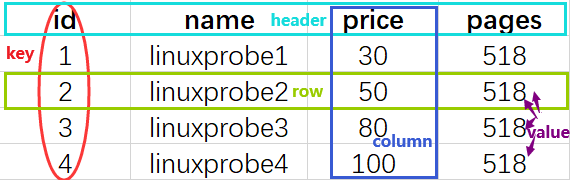
Figure 18-2 Database Storage Concept
For example, create a table named mybook in the newly created linuxprobe database, then initialize the table structure to define the data storage layout. We define three fields: a character field name (length 15) to store book titles; integer fields price and pages to store book prices and page counts respectively. After executing the following commands, you can view the table structure:
MariaDB [(none)]> use linuxprobe;
Database changed
MariaDB [linuxprobe]> CREATE TABLE mybook (name char(15),price int,pages int);
Query OK, 0 rows affected (0.021 sec)

MariaDB [linuxprobe]> DESCRIBE mybook;
+-------+----------+------+-----+---------+-------+
| Field | Type     | Null | Key | Default | Extra |
+-------+----------+------+-----+---------+-------+
| name  | char(15) | YES  |     | NULL    |       |
| price | int(11)  | YES  |     | NULL    |       |
| pages | int(11)  | YES  |     | NULL    |       |
+-------+----------+------+-----+---------+-------+
3 rows in set (0.001 sec)
18.5 Managing Tables and Data
Next, insert a book entry into the mybook data table. Use the INSERT command, specifying the table name and corresponding column items. Executing this command writes the book information. Below, insert a book entry with the title linuxprobe, price of 60 yuan, and 518 pages. After executing the command, the book information is successfully written into the table. You can then query the table's contents. When using the SELECT command to query table data, specify the columns you wish to retrieve. To view all table contents, use the asterisk (*) wildcard.
MariaDB [linuxprobe]> INSERT INTO mybook(name,price,pages) VALUES('linuxprobe','60', '518');
Query OK, 1 row affected (0.001 sec)

MariaDB [linuxprobe]> SELECT * from mybook;
+------------+-------+-------+
| name       | price | pages |
+------------+-------+-------+
| linuxprobe |    60 |   518 |
+------------+-------+-------+
1 row in set (0.001 sec)
For database administrators, mastering the four core operations—insert, delete, update, and query—is essential.This means creating data tables and inserting content is only the first step; they must also master methods for modifying table contents. For example, the UPDATE command can be used to change the price of the recently inserted linuxprobe book to 55 yuan, followed by the SELECT command to view its title and pricing details. Note that since only the title and price are being checked here—not the page count—there's no need to use the asterisk wildcard to display all content.
MariaDB [linuxprobe]> UPDATE mybook SET price=55 ;
Query OK, 1 row affected (0.001 sec)
Rows matched: 1  Changed: 1  Warnings: 0

MariaDB [linuxprobe]> SELECT name,price FROM mybook;
+------------+-------+
| name       | price |
+------------+-------+
| linuxprobe |    55 |
+------------+-------+
1 row in set (0.001 sec)
Want to modify a specific record? No problem—just use the WHERE clause in the corresponding command to specify it. First, let's insert two book entries:
MariaDB [linuxprobe]> INSERT INTO mybook(name,price,pages) VALUES('linuxcool','85', '300');
Query OK, 1 row affected (0.001 sec)

MariaDB [linuxprobe]> INSERT INTO mybook(name,price,pages) VALUES('linuxdown','105', '500');
Query OK, 1 row affected (0.001 sec)
Then use the WHERE clause to update only the price of the book named 'linuxcool' to 60 yuan, leaving other records unchanged:
MariaDB [linuxprobe]> UPDATE mybook SET price=60 where name='linuxcool';
Query OK, 1 row affected (0.001 sec)
Rows matched: 1  Changed: 1  Warnings: 0

MariaDB [linuxprobe]> select * from mybook;
+------------+-------+-------+
| name       | price | pages |
+------------+-------+-------+
| linuxprobe |    55 |   518 |
| linuxcool  |    60 |   300 |
| linuxdown  |   105 |   500 |
+------------+-------+-------+
3 rows in set (0.001 sec)
You can also use the DELETE command to remove content from a data table. Below, we use the DELETE command to remove all content from the mybook data table. Afterward, when you view the table's contents, you'll find it empty:
MariaDB [linuxprobe]> DELETE FROM mybook;
Query OK, 3 rows affected (0.001 sec)

MariaDB [linuxprobe]> SELECT * FROM mybook;
Empty set (0.001 sec)
Typically, data tables store tens of thousands of records. For instance, our newly created mybook table for book information will accumulate more entries over time. In such cases, how would we define a query to retrieve only books priced above a certain threshold?
First, let's insert four book entries using the INSERT command:
MariaDB [linuxprobe]> INSERT INTO mybook(name,price,pages) VALUES('linuxprobe1','30','518');
Query OK, 1 row affected (0.001 sec)

MariaDB [linuxprobe]> INSERT INTO mybook(name,price,pages) VALUES('linuxprobe2','50','518');
Query OK, 1 row affected (0.001 sec)

MariaDB [linuxprobe]> INSERT INTO mybook(name,price,pages) VALUES('linuxprobe3','80','518');
Query OK, 1 row affected (0.001 sec)

MariaDB [linuxprobe]> INSERT INTO mybook(name,price,pages) VALUES('linuxprobe4','100','518');
Query OK, 1 row affected (0.001 sec)
To refine query results, combine SELECT with WHERE clauses. WHERE specifies matching conditions for database queries. By defining criteria, you retrieve only qualifying data. Table 18-3 lists common WHERE operators and their functions.
Table 18-3 Common Operators in WHERE Clauses and Their Functions
| Operator | Function |
|---|---|
| = | Equal |
| <> or != | Not equal |
| > | Greater than |
| < | Less than |
| >= | Greater than or equal to |
| <= | Less than or equal to |
| BETWEEN | Filter values within a specified range |
| LIKE | Perform pattern (fuzzy) matching |
| IN | Match against one of several given values |
Now let's get hands-on. Retrieve books from the mybook table where the price is greater than 75 yuan or not equal to 80 yuan. The corresponding commands are shown below. After familiarizing yourself with these two query conditions, you can try searching for books with the exact title "linuxprobe2" on your own.
MariaDB [linuxprobe]> SELECT * FROM mybook WHERE price>75;
+-------------+-------+-------+
| name        | price | pages |
+-------------+-------+-------+
| linuxprobe3 |    80 |   518 |
| linuxprobe4 |   100 |   518 |
+-------------+-------+-------+
2 rows in set (0.001 sec)

MariaDB [linuxprobe]> SELECT * FROM mybook WHERE price!=80;
+-------------+-------+-------+
| name        | price | pages |
+-------------+-------+-------+
| linuxprobe1 |    30 |   518 |
| linuxprobe2 |    50 |   518 |
| linuxprobe4 |   100 |   518 |
+-------------+-------+-------+
3 rows in set (0.001 sec)
The more matching conditions you add, the more precise the results become. Append the AND operator after the WHERE clause to perform multiple matches. For example, execute the following command to find the names of books priced at 30 yuan with 518 pages:
MariaDB [linuxprobe]> SELECT * from mybook WHERE price=30 AND pages=518 ;
+-------------+-------+-------+
| name        | price | pages |
+-------------+-------+-------+
| linuxprobe1 |    30 |   518 |
+-------------+-------+-------+
1 row in set (0.000 sec)
MariaDB [linuxprobe]> exit
Bye
18.6 Database Backup and Recovery
As mentioned earlier, this book focuses on Linux system administration and does not delve deeply into database management systems. Therefore, mastering the basic database commands above is sufficient. The following section covers database backup and recovery—practical knowledge you should acquire.
The mysqldump command is used to back up database data. Its format is mysqldump [options] [database name]. Its options are largely similar to those of the mysql command. The -u option defines the username for logging into the database, while -p prompts for the password. The database name to be backed up follows. Since the local system uses the unix_socket authentication mode, no password is required; simply append the database name to be backed up.
Below, we export the contents of the linuxprobe database into a file and save it to the root administrator's home directory:
root@linuxprobe:~# mysqldump linuxprobe > /root/linuxprobeDB.dump
Next, access the MariaDB database management system and permanently delete the linuxprobe database. This will also permanently remove the mybook data table. Then recreate the linuxprobe database:
root@linuxprobe:~# mysql
MariaDB [(none)]> DROP DATABASE linuxprobe;
Query OK, 1 row affected (0.106 sec)

MariaDB [(none)]> SHOW databases;
+--------------------+
| Database           |
+--------------------+
| information_schema |
| mysql              |
| performance_schema |
| sys                |
+--------------------+
4 rows in set (0.001 sec)

MariaDB [(none)]> CREATE DATABASE linuxprobe;
Query OK, 1 row affected (0.001 sec)
Now it's time to witness the data recovery results! Use the input redirection symbol to import the recently backed-up database file into the mysql command, then execute the command. After logging into the MariaDB database, you'll see the linuxprobe database and mybook table restored. Database recovery successful!
root@linuxprobe:~# mysql linuxprobe < /root/linuxprobeDB.dump
root@linuxprobe:~# mysql
MariaDB [(none)]> use linuxprobe;
Database changed

MariaDB [linuxprobe]> SHOW tables;
+----------------------+
| Tables_in_linuxprobe |
+----------------------+
| mybook               |
+----------------------+
1 row in set (0.000 sec)

MariaDB [linuxprobe]> describe mybook;
+-------+----------+------+-----+---------+-------+
| Field | Type     | Null | Key | Default | Extra |
+-------+----------+------+-----+---------+-------+
| name  | char(15) | YES  |     | NULL    |       |
| price | int(11)  | YES  |     | NULL    |       |
| pages | int(11)  | YES  |     | NULL    |       |
+-------+----------+------+-----+---------+-------+
3 rows in set (0.001 sec)
Review Questions
- Why did RHEL 10 choose MariaDB to replace the MySQL database management system?
Answer: Because MariaDB is maintained by the open-source community and is not subject to commercial licensing restrictions.
- What is the command to initialize the MariaDB or MySQL database management system?
Answer: The mysql_secure_installation command. It is recommended to run this command after each installation of MariaDB or MySQL.
- What command is used to view existing databases or tables?
Answer: To view the list of existing databases, execute the "SHOW databases;" command. To view existing tables in the current database, execute the "SHOW tables;" command.
- What command switches to a specific database?
Answer: Execute the "use database_name" command to switch successfully.
- What commands should be executed to grant or revoke privileges for a specific user?
Answer: To grant privileges to a user, execute the GRANT command; to revoke privileges, execute the REVOKE command.
- What command should be executed to delete a local database account named luke?
Answer: Execute the command DROP user luke@localhost;.
- What command should be executed to view only the name field in the mybook table?
Answer: Execute the SELECT name FROM mybook; command.
- What command should be executed to view only book information in the mybook table where the price exceeds 75 yuan?
Answer: Execute the command SELECT * FROM mybook WHERE price>75;
- To export the contents of the linuxprobe database into a backup file (saved in the root administrator's home directory), what command should be executed?
Answer: Execute the command: mysqldump -u root -p linuxprobe > /root/linuxprobeDB.dump.
- To restore the above backup file to the database, what command should be executed?
Answer: Execute the command: mysql -u root -p linuxprobe < /root/linuxprobeDB.dump.