Chapter 11 · File Transfers with the vsftpd FTP Server
Chapter Overview
This chapter begins by introducing the File Transfer Protocol (FTP) and how to deploy the vsftpd service. It then delves into the most commonly used parameters in the vsftpd main configuration file and their functions, followed by detailed demonstrations of configuring two authentication modes for the vsftpd service: anonymous open mode and local user mode.
Through the hands-on exercises in this chapter, readers can further practice configuring SELinux services, master the theory and configuration of the Trivial File Transfer Protocol (TFTP), and learn valuable experience and techniques from Instructor Liu Chuan regarding service deployment and troubleshooting. This prepares them to flexibly address various issues that may arise in production environments.
11.1 File Transfer Protocol
Generally speaking, the primary purpose of connecting computers to a network is to access information, and file transfer is a crucial method for obtaining data. Today's internet comprises a vast array of physical devices—personal computers, workstations, servers, minicomputers, mainframes, supercomputers, and more—varying in model and architecture. Even personal computers may run different operating systems like Windows, Linux, UNIX, or macOS. To enable file transfers across such diverse and complex devices, the File Transfer Protocol (FTP) was developed.
FTP is a protocol for transferring files over the internet. It operates on a client/server model and uses ports 20 and 21 by default: port 20 for data transfer and port 21 for receiving FTP commands and parameters from the client. FTP servers are commonly deployed within internal networks, offering ease of setup and convenient management. Furthermore, some FTP client tools support multi-point downloads and resume-enabled transfers, making them popular among users. The FTP transmission topology is illustrated in Figure 11-1.
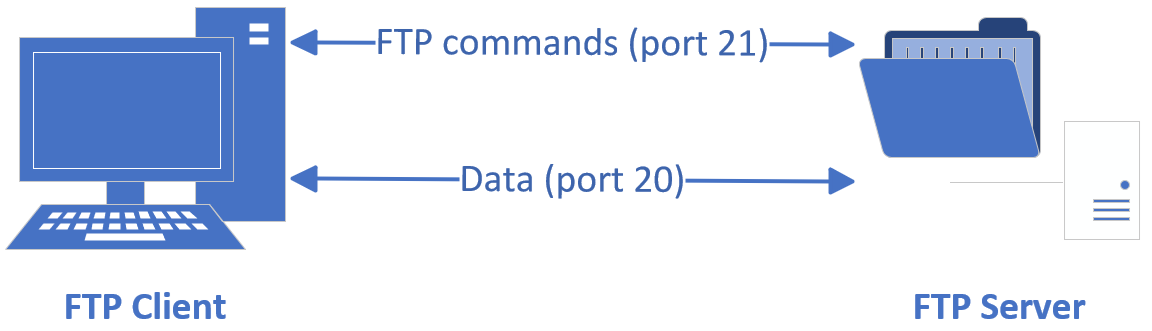
Figure 11-1 FTP Protocol Transmission Topology
An FTP server is a host that provides file storage and access services over the Internet via FTP. An FTP client is a host that sends connection requests to the server to establish a data transmission link. FTP operates in two modes:
Active Mode: The FTP server initiates the connection request to the client.
Passive Mode: The FTP server waits for the client to initiate the connection request (default operating mode).
As discussed in Chapter 8 when learning firewall service configuration, firewalls are typically used to filter traffic entering the internal network from the external network. Therefore, it is sometimes necessary to set the FTP operating mode to active mode to enable data transmission. The corresponding process topology is shown in Figure 11-2.
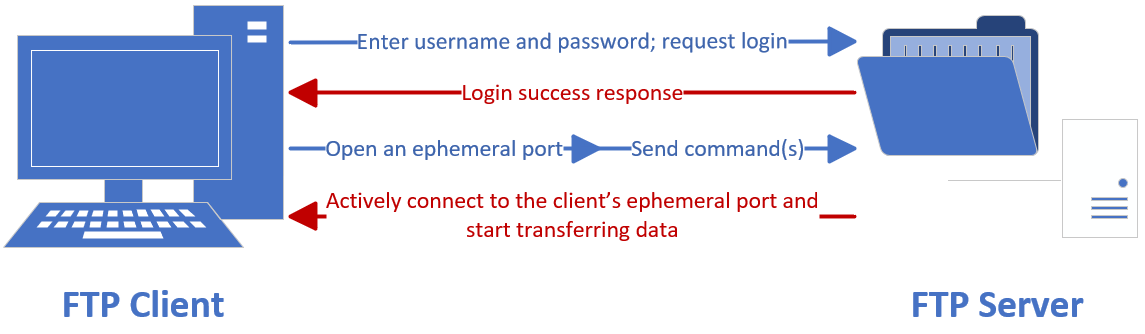
Figure 11-2 Schematic of FTP Active Transfer Mode
Since protocols like FTP, HTTP, and Telnet transmit data in plaintext, they are inherently insecure by design. To improve the security of FTP file transfers, the vsftpd (Very Secure FTP Daemon) service program was developed. It is an open-source FTP server for Linux systems that provides strong access controls and optional SSL/TLS encryption.
After properly configuring the software repository, you can install the vsftpd service:
root@linuxprobe:~# dnf install vsftpd
Updating Subscription Management repositories.
BaseOS                                          2.7 MB/s | 2.7 kB     00:00
AppStream                                       2.7 MB/s | 2.8 kB     00:00
Dependencies resolved.
================================================================================
 Package         Architecture    Version               Repository          Size
================================================================================
Installing:
 vsftpd          x86_64          3.0.5-8.el10          AppStream          174 k

Transaction Summary
================================================================================
Install  1 Package

Total size: 174 k
Installed size: 348 k
Is this ok [y/N]: y
Downloading Packages:
Running transaction check
Transaction check succeeded.
Running transaction test
Transaction test succeeded.
Running transaction
  Preparing        :                                                        1/1
  Installing       : vsftpd-3.0.5-8.el10.x86_64                             1/1
  Running scriptlet: vsftpd-3.0.5-8.el10.x86_64                             1/1
Installed products updated.

Installed:
  vsftpd-3.0.5-8.el10.x86_64

Complete!
Add FTP to the allow list of the firewalld service:
root@linuxprobe:~# firewall-cmd --permanent --zone=public --add-service=ftp
success
root@linuxprobe:~# firewall-cmd --reload
success
The main configuration file for the vsftpd service (/etc/vsftpd/vsftpd.conf) spans a total of 126 lines. However, most parameters begin with a hash symbol (#), making them comments. There's no need to spend excessive time reviewing these comment lines. We can add the -v parameter to the grep command to filter and select only the lines without the hash symbol (#), effectively removing all comment lines. Then, redirect the filtered parameter lines back to the original main configuration file. After this operation, only 12 valid parameter lines remain:
root@linuxprobe:~# mv /etc/vsftpd/vsftpd.conf /etc/vsftpd/vsftpd.conf_bak
root@linuxprobe:~# grep -v "#" /etc/vsftpd/vsftpd.conf_bak > /etc/vsftpd/vsftpd.conf
root@linuxprobe:~# cat /etc/vsftpd/vsftpd.conf
anonymous_enable=NO
local_enable=YES
write_enable=YES
local_umask=022
dirmessage_enable=YES
xferlog_enable=YES
connect_from_port_20=YES
xferlog_std_format=YES
listen=NO
listen_ipv6=YES
pam_service_name=vsftpd
userlist_enable=YES
Table 11-1 lists commonly used parameters in the vsftpd service program's main configuration file along with their functions. For now, a basic understanding suffices. Subsequent experiments will demonstrate how to use these parameters to help you become familiar with and master them.
Table 11-1 Common Parameters and Their Functions in the vsftpd Service Program's Main Configuration File
| Parameter | Function |
|---|---|
| listen=[YES|NO] | Whether to listen for connections as a standalone service |
| listen_address=IP address | Sets the IP address to listen on |
| listen_port=21 | Sets the FTP service listening port |
| download_enable=[YES|NO] | Whether to allow file downloads |
| userlist_enable=[YES|NO] userlist_deny=[YES|NO] | Set userlist to "allow" or "deny" operations |
| max_clients=0 | Maximum number of client connections; 0 means no limit |
| max_per_ip=0 | Maximum connections per IP address; 0 means no limit |
| anonymous_enable=[YES|NO] | Enable/disable anonymous user access |
| anon_upload_enable=[YES|NO] | Enable/disable file uploads for anonymous users |
| anon_umask=022 | Umask value for files uploaded by anonymous users |
| anon_root=/var/ftp | FTP root directory for anonymous users |
| anon_mkdir_write_enable=[YES|NO] | Allow anonymous users to create directories |
| anon_other_write_enable=[YES|NO] | Enable other write permissions for anonymous users (including renaming, deletion, etc.) |
| anon_max_rate=0 | Maximum transfer rate for anonymous users (bytes/second). 0 means no limit |
| local_enable=[YES|NO] | Whether to allow local users to log in to FTP |
| local_umask=022 | umask value for files uploaded by local users |
| local_root=/var/ftp | FTP root directory for local users |
| chroot_local_user=[YES|NO] | Whether to restrict users to their FTP directory for security |
| local_max_rate=0 | Maximum transfer rate for local users (bytes/second), 0 means no limit |
11.2 vsftpd Service Program
As a more secure FTP server program, vsftpd allows users to log in using two authentication modes.
Anonymous mode: The least secure authentication mode, permitting anyone to log in directly without password verification; suitable for scenarios with low security requirements.
Local User Mode: Authenticates using Linux system accounts and passwords, offering greater security than anonymous mode while remaining simple to configure.
The ftp command is a command-line client tool for managing FTP services in Linux systems. We will first manually install this FTP client tool to view results in subsequent experiments.
root@linuxprobe:~# dnf install ftp
Updating Subscription Management repositories.
Last metadata expiration check: 0:08:48 ago on Tue 25 Mar 2025 09:00:02 AM CST.
Dependencies resolved.
================================================================================
 Package      Architecture    Version                  Repository          Size
================================================================================
Installing:
 ftp          x86_64          0.17-96.el10             AppStream           62 k

Transaction Summary
================================================================================
Install  1 Package

Total size: 62 k
Installed size: 107 k
Is this ok [y/N]: y
Downloading Packages:
Running transaction check
Transaction check succeeded.
Running transaction test
Transaction test succeeded.
Running transaction
  Preparing        :                                                        1/1
  Installing       : ftp-0.17-96.el10.x86_64                                1/1
  Running scriptlet: ftp-0.17-96.el10.x86_64                                1/1
Installed products updated.

Installed:
  ftp-0.17-96.el10.x86_64

Complete!
If you wish to test the experiment on a Windows host, you can choose a preferred tool from FileZilla, FireFTP, SmartFTP, WinSCP, or Cyberduck and download it online. These tools offer more robust functionality than the ftp command.
11.2.1 Anonymous Access Mode
As mentioned earlier, anonymous open mode is the least secure authentication method in the vsftpd service. Anyone can log in to the FTP server without password verification. This mode is typically used for accessing unimportant public files (avoid storing critical files in production environments). Of course, if you use the firewall management tools introduced in Chapter 8 to restrict vsftpd access to your corporate intranet, it can provide basic security.
The vsftpd service disables anonymous mode by default. We need to enable anonymous users' permissions for uploading and downloading files, as well as creating, deleting, and renaming files. Note that granting these permissions to anonymous users introduces potential security risks. These permissions are enabled here solely for practicing vsftpd configuration on Linux systems and are not recommended in production environments.
Table 11-2 lists the permission parameters that can be granted to anonymous users and their effects.
Table 11-2 Permission Parameters Opened to Anonymous Users and Their Effects
| Parameter | Function |
|---|---|
| anonymous_enable=YES | Enable anonymous access mode |
| anon_umask=022 | Umask value for files uploaded by anonymous users |
| anon_upload_enable=YES | Enable file uploads by anonymous users |
| anon_mkdir_write_enable=YES | Enable anonymous users to create directories |
| anon_other_write_enable=YES | Enable anonymous users to modify directory names or delete directories |
root@linuxprobe:~# vim /etc/vsftpd/vsftpd.conf
  1 anonymous_enable=YES
  2 anon_umask=022
  3 anon_upload_enable=YES
  4 anon_mkdir_write_enable=YES
  5 anon_other_write_enable=YES
  6 local_enable=YES
  7 write_enable=YES
  8 local_umask=022
  9 dirmessage_enable=YES
 10 xferlog_enable=YES
 11 connect_from_port_20=YES
 12 xferlog_std_format=YES
 13 listen=NO
 14 listen_ipv6=YES
 15 pam_service_name=vsftpd
 16 userlist_enable=YES
In the main configuration file for the vsftpd service, correctly fill in the parameters, then save and exit. You also need to restart the vsftpd service to apply the new configuration settings. Here, we remind readers that in production environments or during RHCSA, RHCE, and RHCA certification exams, you must add the configured service to the startup items to ensure the server continues providing services normally after rebooting:
root@linuxprobe:~# systemctl restart vsftpd
root@linuxprobe:~# systemctl enable vsftpd
Created symlink '/etc/systemd/system/multi-user.target.wants/vsftpd.service' → '/usr/lib/systemd/system/vsftpd.service'.
Now, you can execute the ftp command on the client to connect to the remote FTP server. In vsftpd's anonymous open authentication mode, the account is uniformly set to anonymous with an empty password. After connecting to the FTP server, the default directory accessed is /var/ftp. Attempt to switch to the pub directory within this directory, then create a new directory file to verify write permissions:
root@linuxprobe:~# ftp 192.168.10.10
Connected to 192.168.10.10 (192.168.10.10).
220 (vsFTPd 3.0.5)
Name (192.168.10.10:root): anonymous
331 Please specify the password.
Password: Press Enter here
230 Login successful.
Remote system type is UNIX.
Using binary mode to transfer files.
ftp> cd pub
250 Directory successfully changed.
ftp> mkdir files
550 Create directory operation failed.
ftp> exit
221 Goodbye.
The system reports that directory creation failed! We clearly enabled FTP access rules in the firewalld firewall and granted anonymous users directory creation and file write permissions in the vsftpd service's main configuration file. Before proceeding, take a moment to think through the solution yourself—this exercise will sharpen your Linux troubleshooting skills.
As mentioned earlier, under vsftpd's anonymous open authentication mode, the default access point is the /var/ftp directory. Checking this directory's permissions reveals that only the root administrator has write access. No wonder the system rejected the operation! Let's change the directory owner to the system account ftp. Should that work?
root@linuxprobe:~# ls -ld /var/ftp/pub
drwxr-xr-x. 2 root root 6 Aug 13 2024 /var/ftp/pub
root@linuxprobe:~# chown -R ftp /var/ftp/pub
root@linuxprobe:~# ls -ld /var/ftp/pub
drwxr-xr-x. 2 ftp root 6 Aug 13 2024 /var/ftp/pub
root@linuxprobe:~# ftp 192.168.10.10
Connected to 192.168.10.10 (192.168.10.10).
220 (vsFTPd 3.0.5)
Name (192.168.10.10:root): anonymous
331 Please specify the password.
Password: Press Enter here
230 Login successful.
Remote system type is UNIX.
Using binary mode to transfer files.
ftp> cd pub
250 Directory successfully changed.
ftp> mkdir files
550 Create directory operation failed.
ftp> exit
221 Goodbye.
The system reported an error again! Although the system still indicated a failed operation when creating a directory after logging into the FTP server using the ftp command, the error message had changed. When lacking write permissions, the system displays "Permission denied." Therefore, Instructor Liu Chuan suspected a permissions issue. However, the current error message states "Create directory operation failed." Readers should now recognize that the SELinux service is likely causing interference.
Next, use the getsebool command to check which SELinux domain policies are related to FTP:
root@linuxprobe:~# getsebool -a | grep ftp
ftpd_anon_write --> off
ftpd_connect_all_unreserved --> off
ftpd_connect_db --> off
ftpd_full_access --> off
ftpd_use_cifs --> off
ftpd_use_fusefs --> off
ftpd_use_nfs --> off
ftpd_use_passive_mode --> off
httpd_can_connect_ftp --> off
httpd_enable_ftp_server --> off
tftp_anon_write --> off
tftp_home_dir --> off
Based on experience (which requires long-term cultivation, no other way around it) and the policy name, we can determine that the policy rule ftpd_full_access --> off caused the operation failure. Next, modify this policy rule and use the -P parameter during configuration to make the changes permanent, ensuring files can still be written successfully after server reboot.
root@linuxprobe:~# setsebool -P ftpd_full_access=on
After modifying the SELinux domain policy, operations like file creation, modification, and deletion will proceed smoothly.
root@linuxprobe:~# ftp 192.168.10.10
Connected to 192.168.10.10 (192.168.10.10).
220 (vsFTPd 3.0.5)
Name (192.168.10.10:root): anonymous
331 Please specify the password.
Password: Press Enter here
230 Login successful.
Remote system type is UNIX.
Using binary mode to transfer files.
ftp> cd pub
250 Directory successfully changed.
ftp> mkdir files
257 "/pub/files" created
ftp> rename files database
350 Ready for RNTO.
250 Rename successful.
ftp> rmdir database
250 Remove directory operation successful.
ftp> exit
221 Goodbye.
In the above operations, due to insufficient permissions, we set the owner of the /var/ftp/pub directory to the ftp user itself. Besides this method, you can also grant write permissions to other users by adjusting permissions (e.g., setting permissions like 777). However, since the vsftpd service includes built-in security protections, avoid directly modifying permissions on /var/ftp. Doing so may trigger a "security lockout" preventing login. Remember to modify permissions only on the inner pub directory:
root@linuxprobe:~# chmod -R 777 /var/ftp
root@linuxprobe:~# ftp 192.168.10.10
Connected to 192.168.10.10 (192.168.10.10).
220 (vsFTPd 3.0.5)
Name (192.168.10.10:root): anonymous
331 Please specify the password.
Password: Press Enter here
500 OOPS: vsftpd: refusing to run with writable root inside chroot()
Login failed.
421 Service not available, remote server has closed connection
Tips:
As a reminder, before proceeding to the next experiment, always restore the virtual machine to its initial state to prevent conflicts between experiments.
11.2.2 Local User Mode
Compared to anonymous open mode, local user mode offers greater security and is straightforward to configure. If you previously used anonymous open mode, disable it first and then enable local user mode. The permission parameters and their functions for local user mode are shown in Table 11-3.
Table 11-3 Permission Parameters and Functions for Local User Mode
| Parameter | Function |
|---|---|
| anonymous_enable=NO | Disables anonymous open mode |
| local_enable=YES | Enables local user mode |
| write_enable=YES | Sets write permissions for the FTP server |
| local_umask=022 | Umask value for files created in local user mode; higher values result in stricter actual file permissions |
| userlist_deny=YES | Enables the "denied users list" mechanism; list files are ftpusers and user_list |
| userlist_enable=YES | Enables the "allowed users list" mechanism; sets the scope of users permitted access |
By default, all necessary parameters for local users are already in place and require no modification. The local_umask parameter, however, may be unfamiliar to many. Umask is commonly referred to as the "permission mask" or "permission complement," directly influencing the permission values assigned to newly created files.
For example, in Linux systems, new regular files default to permissions 644, while new directories default to 755. While this is common knowledge, have you ever wondered why these specific numbers are used?
Actually, the default permissions for regular files are 666, and for directories, they are 777. These values are hardcoded in the system configuration files. However, the default permissions do not equate to the final permissions. The default value for the local_umask parameter is 022. According to the formula "Default Permissions - local_umask = Actual Permissions," the default permissions for regular files are reduced to 644, and for directories, they are reduced to 755.
If this remains unclear, consider another example: Everyone pays taxes on their income, where taxes correspond to the umask value. If the government wants individuals to retain more income, it reduces taxes (lowers the umask); if it wants less income retained, it increases taxes (raises the umask). In essence, umask acts as an inverse mask for permissions, allowing adjustment of the final permission values. Hopefully, this clarifies the concept.
Alright, I digressed a bit. Now let's configure the local user parameters:
root@linuxprobe:~# vim /etc/vsftpd/vsftpd.conf
  1 anonymous_enable=NO
  2 local_enable=YES
  3 write_enable=YES
  4 local_umask=022
  5 dirmessage_enable=YES
  6 xferlog_enable=YES
  7 connect_from_port_20=YES
  8 xferlog_std_format=YES
  9 listen=NO
 10 listen_ipv6=YES
 11 pam_service_name=vsftpd
 12 userlist_enable=YES
Correctly fill in the parameters in the main configuration file of the vsftpd service program, then save and exit. You must also restart the vsftpd service for the new configuration to take effect. After completing the previous experiment and restoring the virtual machine to its initial state, add the configured service to the system startup items. This ensures vsftpd remains operational after system reboots.
root@linuxprobe:~# systemctl restart vsftpd
root@linuxprobe:~# systemctl enable vsftpd
Created symlink '/etc/systemd/system/multi-user.target.wants/vsftpd.service' → '/usr/lib/systemd/system/vsftpd.service'.
In theory, you should now be able to log in to the FTP server using a local user account. However, when attempting to log in with the root administrator account, the system displays the following error message:
root@linuxprobe:~# ftp 192.168.10.10
Connected to 192.168.10.10 (192.168.10.10).
220 (vsFTPd 3.0.5)
Name (192.168.10.10:root): root
530 Permission denied.
Login failed.
ftp> exit
221 Goodbye.
As seen, access was denied before we even entered the root administrator password. This occurs because the directory containing the vsftpd service program holds two default files named "user lists" (ftpusers and user_list).You may recall the Japanese film Death Note, featuring a mysterious black notebook where writing someone's name caused their death. These two files in the vsftpd directory serve a similar purpose: any user listed in them is permanently barred from logging in to the FTP server.
root@linuxprobe:~# cat /etc/vsftpd/user_list
# vsftpd userlist
# If userlist_deny=NO, only allow users in this file
# If userlist_deny=YES (default), never allow users in this file, and
# do not even prompt for a password.
# Note that the default vsftpd pam config also checks /etc/vsftpd/ftpusers
# for users that are denied.
root
bin
daemon
adm
lp
sync
shutdown
halt
mail
news
uucp
operator
games
nobody

root@linuxprobe:~# cat /etc/vsftpd/ftpusers
# Users that are not allowed to login via ftp
root
bin
daemon
adm
lp
sync
shutdown
halt
mail
news
uucp
operator
games
nobody
Indeed! The vsftpd service program disables root administrator and most system user logins by default to ensure server security. This effectively prevents hackers from brute-forcing root passwords through FTP services. If you confirm that using the root administrator in a production environment poses no security risk, simply delete the root username as prompted above.
Then, attempt to log in to the vsftpd service using the root administrator account. This time, the login succeeds:
root@linuxprobe:~# ftp 192.168.10.10
Connected to 192.168.10.10 (192.168.10.10).
220 (vsFTPd 3.0.5)
Name (192.168.10.10:root): root
331 Please specify the password.
Password: Enter the user's password here
230 Login successful.
Remote system type is UNIX.
Using binary mode to transfer files.
ftp> exit
221 Goodbye.
Before proceeding with the next experiment, have you ever wondered why two nearly identical files are created for the same purpose—blocking user logins?
The key lies in the user_list file. If you change the userlist_deny parameter in the main configuration file to NO, the user_list becomes a "forced whitelist." Its function is then reversed: it only allows access to users listed in the file and denies access to all others.
Additionally, when logging into the FTP server using local user mode, access defaults to the user's home directory. Since this directory's default owner and group are the user themselves, insufficient write permissions shouldn't be an issue. Yet the current operation is still denied because we previously restored the virtual machine system to its initial state. To resolve this, we must re-enable the SELinux domain's permissive policy for FTP services:
root@linuxprobe:~# getsebool -a | grep ftp
ftpd_anon_write --> off
ftpd_connect_all_unreserved --> off
ftpd_connect_db --> off
ftpd_full_access --> off
ftpd_use_cifs --> off
ftpd_use_fusefs --> off
ftpd_use_nfs --> off
ftpd_use_passive_mode --> off
httpd_can_connect_ftp --> off
httpd_enable_ftp_server --> off
tftp_anon_write --> off
tftp_home_dir --> off
root@linuxprobe:~# setsebool -P ftpd_full_access=on
Instructor Liu Chuan adds a few more points. When setting SELinux domain policies in experimental or production environments, always remember to include the -P parameter. Otherwise, the server will revert to its original policy after rebooting, rendering configured services unusable. After applying the configuration, log in to the FTP server using a local user account and verify that you can create, rename, and delete files.
[root@linuxprobe vsftpd]# ftp 192.168.10.10
Connected to 192.168.10.10 (192.168.10.10).
220 (vsFTPd 3.0.5)
Name (192.168.10.10:root): root
331 Please specify the password.
Password: Enter the user's password here
230 Login successful.
Remote system type is UNIX.
Using binary mode to transfer files.
ftp> mkdir files
257 "/root/files" created
ftp> rename files database
350 Ready for RNTO.
250 Rename successful.
ftp> rmdir database
250 Remove directory operation successful.
ftp> exit
221 Goodbye.
11.3 TFTP
TFTP (Trivial File Transfer Protocol) is a protocol based on UDP for transferring simple files between clients and servers. As its name suggests, it provides uncomplicated, low-overhead file transfer services and can be considered a simplified version of FTP.
TFTP is much less capable than FTP—it cannot even change directories—and its security is weaker than FTP. Furthermore, since TFTP uses UDP for file transfers on port 69, the transfer process is less reliable than FTP.However, TFTP eliminates the need for client authentication, thereby reducing unnecessary system and network bandwidth consumption. This makes it more efficient for transferring trivial, small files.
Next, install the relevant software packages on the system for testing. Here, tftp-server is the server program, while tftp is the client tool used for connection testing:
root@linuxprobe:~# dnf install tftp-server tftp
Updating Subscription Management repositories.
BaseOS                                          2.7 MB/s | 2.7 kB     00:00
AppStream                                       2.7 MB/s | 2.8 kB     00:00
Dependencies resolved.
================================================================================
 Package             Architecture   Version             Repository         Size
================================================================================
Installing:
 tftp                x86_64         5.2-47.el10         AppStream          36 k
 tftp-server         x86_64         5.2-47.el10         AppStream          44 k

Transaction Summary
================================================================================
Install  2 Packages

Total size: 80 k
Installed size: 113 k
Is this ok [y/N]: y
Downloading Packages:
Running transaction check
Transaction check succeeded.
Running transaction test
Transaction test succeeded.
Running transaction
  Preparing        :                                                        1/1
  Installing       : tftp-server-5.2-47.el10.x86_64                         1/2
  Running scriptlet: tftp-server-5.2-47.el10.x86_64                         1/2
  Installing       : tftp-5.2-47.el10.x86_64                                2/2
  Running scriptlet: tftp-5.2-47.el10.x86_64                                2/2
Installed products updated.

Installed:
  tftp-5.2-47.el10.x86_64             tftp-server-5.2-47.el10.x86_64

Complete!
Next, restart the TFTP service and add it to the system's startup items to ensure it remains active after system reboots. Since some firewalls block UDP port 69 by default, manually add this port to the firewall's allow policy:
root@linuxprobe:~# systemctl restart tftp
root@linuxprobe:~# systemctl enable tftp
root@linuxprobe:~# firewall-cmd --zone=public --permanent --add-port=69/udp
success
root@linuxprobe:~# firewall-cmd --reload
success
The TFTP root directory is /var/lib/tftpboot. You can use the newly installed tftp command to access files within it and experience the TFTP file transfer process firsthand; by default, file paths are relative to this directory. When accessing files with the tftp command, you may utilize the parameters listed in Table 11-4.
Table 11-4 Available Parameters and Their Functions in the tftp Command
| Parameter | Function |
|---|---|
| ? | Display help information |
| put | Upload a file |
| get | Download a file |
| verbose | Display detailed processing information |
| status | Display current status information |
| binary | Transfer using binary mode |
| ascii | Transfer using ASCII mode |
| timeout | Set retransmission timeout period |
| quit | Exit the command |
root@linuxprobe:~# echo "i love linux" > /var/lib/tftpboot/readme.txt
root@linuxprobe:~# tftp 192.168.10.10
tftp> get readme.txt
tftp> quit
root@linuxprobe:~# ls
anaconda-ks.cfg  Documents  Music     Public      Templates
Desktop          Downloads  Pictures  readme.txt  Videos
root@linuxprobe:~# cat readme.txt
i love linux
Of course, TFTP service capabilities extend beyond this. Chapter 19 will integrate TFTP with other software to build a complete automated system deployment solution. Keep up the great work!
Review Questions
- Briefly describe the functions of FTP and the port numbers it uses.
Answer: FTP is a protocol for transferring files over the internet, using ports 20 and 21 by default. Port 20 handles data transfer, while port 21 receives FTP commands and parameters initiated by the client.
- Briefly describe the two user authentication modes provided by the vsftpd service program.
Answer: The two user authentication modes are as follows.
- Anonymous mode: The least secure authentication mode, allowing anyone to log in to the FTP server without password verification. Suitable for scenarios with low security requirements.
- Local User Mode: Authenticates using the Linux system's native account credentials. This mode is more secure than Anonymous Mode and is also simple to configure.
- When logging into an anonymous open mode FTP server via the command line interface using the
ftpcommand, what should be entered for the account?
Answer: The username should be entered as "anonymous". In graphical interfaces, manual input of any username or password is generally not required.
- What is the default FTP root directory when logging into an FTP server using anonymous open mode?
Answer: The default FTP root directory is the /var/ftp directory, which also contains a subdirectory named pub by default.
- What is the default FTP root directory when logging into an FTP server using local user mode?
Answer: The default FTP root directory is the user's home directory.
- How can SELinux be temporarily disabled when suspected of causing service malfunction?
Answer: Execute the command setenforce 0.
- What parameter can be used to restrict users from arbitrarily switching to other system directories after logging into FTP?
Answer: Use the chroot_local_user confinement mechanism parameter to restrict users to managing only files within their FTP root directory.
- If FTP service is accessible locally but fails remotely, and both hosts can ping each other, what is the most likely cause?
Answer: The issue most likely lies with the firewall. Configure the firewall to allow FTP traffic.
- What distinguishes TFTP from FTP?
Answer: TFTP provides a simple, low-overhead file transfer service over UDP port 69. It is generally considered a simplified version of FTP with fewer features and weaker security.
- What commands are used for uploading and downloading files in TFTP?
Answer: put and get.