Chapter 14 · Dynamically Managing Host Addresses Using DHCP
Chapter Overview
This chapter introduces the Dynamic Host Configuration Protocol (DHCP), a protocol for automatically managing IP addresses, subnet masks, gateway addresses, DNS addresses, and other parameters for hosts within a local area network. DHCP not only significantly improves IP address utilization but also enhances configuration efficiency while reducing management and maintenance costs.
This chapter details how to configure and deploy the Kea service program on Linux systems, dissects the function of each parameter in the Kea configuration file, and enables readers to experience DHCP's powerful capabilities through hands-on experiments like automatic IP address allocation and binding IP addresses to MAC addresses.
14.1 Dynamic Host Configuration Protocol
DHCP is a UDP-based network protocol designed exclusively for use within local area networks (LANs). Primarily deployed in large LAN environments or networks with numerous mobile devices, it automatically assigns IP addresses and other network parameters to devices within the LAN, providing a one-stop network configuration service.
Simply put, DHCP is a service that enables hosts within a LAN to automatically obtain network parameters. In the topology diagram shown in Figure 14-1, where multiple hosts exist, manually configuring network parameters for each host would be extremely cumbersome and lead to significant maintenance headaches later on. Moreover, as the number of hosts in the server room increases (e.g., to 100 or even 1,000), the manual configuration and maintenance workload could overwhelm operations personnel. DHCP not only automatically assigns network parameters to hosts but also ensures the uniqueness of IP addresses used by hosts. More importantly, it can assign fixed IP addresses to specific hosts.
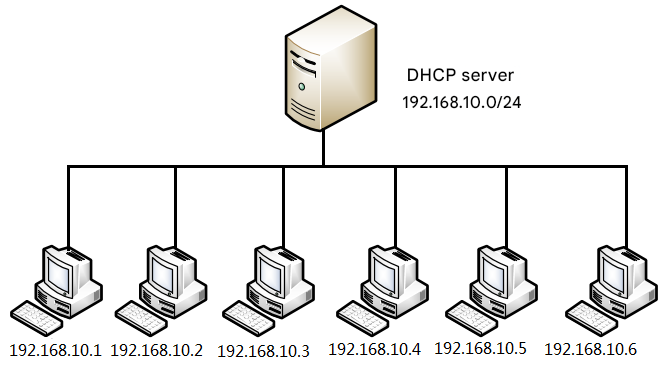
Figure 14-1 Topological Diagram of the DHCP Protocol
DHCP finds extensive application across server rooms, homes, airports, cafes, and beyond. For instance, a reader of this book opened a coffee shop that offers customers not only aromatic coffee but also free wireless internet access. This allows patrons to enjoy their coffee while browsing social media over the Wi-Fi. However, as the shop owner, you certainly wouldn't want (nor have the time) to manually configure IP addresses, subnet masks, and gateway addresses for every visiting customer. Additionally, considering that the internal network segment used by cafes is typically 192.168.10.0/24 (a Class C private address), it can accommodate a maximum of over 200 hosts. Yet, a cafe's daily customer traffic certainly exceeds 200 people.If you manually assign IP addresses, customers won't release them upon leaving, potentially causing address shortages. This wastes IP resources and increases management overhead. Using DHCP solves all these issues—the owner can focus on serving customers and providing delicious coffee, while customers automatically obtain the IP addresses they need for internet access from a DHCP server. When they leave the café, the DHCP server reclaims the IP addresses for reuse by other customers.
Since DHCP will undoubtedly be essential in future production environments, it's necessary to thoroughly familiarize yourself with common DHCP terminology.
Scope: A complete IP address range. DHCP uses scopes to manage network distribution, IP address allocation, and other configuration parameters.
Super Scope: Manages multiple logical subnets within the same physical network by containing a list of scopes for unified administration.
Exclusion Range: Excludes specific IP addresses from a scope to prevent their allocation to clients.
Address Pool: The remaining range of IP addresses available for dynamic allocation to clients after defining DHCP scopes and applying exclusion ranges.
Lease: The period during which a DHCP client can use a dynamically assigned IP address.
Reservation: Ensures a specific device on the network always obtains the same IP address.
14.2 Deploying the Kea Service
Red Hat RHEL 10 has completely removed the familiar traditional ISC (Internet Systems Consortium) DHCP service package—dhcp-server, also known as the dhcpd service—and adopted ISC Kea as the next-generation DHCP service program. Although their theoretical foundations are consistent, their configurations differ significantly. Therefore, please proceed with great care in the following steps.
After confirming the software repository configuration is correct, install the Kea service program. Its package name is kea:
root@linuxprobe:~# dnf install kea
Updating Subscription Management repositories.
BaseOS                                          2.7 MB/s | 2.7 kB     00:00
AppStream                                       2.7 MB/s | 2.8 kB     00:00
Dependencies resolved.
================================================================================
 Package                        Arch       Version             Repository  Size
================================================================================
Installing:
 kea                            x86_64     2.6.1-4.el10        BaseOS     1.3 M
Installing dependencies:
 boost-system                   x86_64     1.83.0-4.el10       BaseOS      16 k
 kea-libs                       x86_64     2.6.1-4.el10        BaseOS     3.1 M
 libpq                          x86_64     16.1-7.el10         BaseOS     253 k
 log4cplus                      x86_64     2.1.1-7.el10        BaseOS     355 k
 mariadb-connector-c            x86_64     3.4.1-1.el10        BaseOS     214 k
 mariadb-connector-c-config     noarch     3.4.1-1.el10        BaseOS      10 k
[... output omitted ...]
Installed:
  boost-system-1.83.0-4.el10.x86_64
  kea-2.6.1-4.el10.x86_64
  kea-libs-2.6.1-4.el10.x86_64
  libpq-16.1-7.el10.x86_64
  log4cplus-2.1.1-7.el10.x86_64
  mariadb-connector-c-3.4.1-1.el10.x86_64
  mariadb-connector-c-config-3.4.1-1.el10.noarch

Complete!
The configuration file for the Kea service program providing IPv4 address information is kea-dhcp4.conf, which spans a whopping 468 lines. However, most of it consists of comments. We can briefly review it first (output details omitted for now; the next section will cover them in detail):
root@linuxprobe:~# cat /etc/kea/kea-dhcp4.conf
Readers familiar with earlier editions of this book will surely recognize this as the familiar JSON-formatted configuration file. Moreover, most lines are empty or comments, making it less intimidating than it appears. We can first execute the following command to filter out all empty lines and comments, generating a streamlined version of the configuration file:
root@linuxprobe:~# cd /etc/kea/
root@linuxprobe:/etc/kea# mv kea-dhcp4.conf kea-dhcp4.bak
root@linuxprobe:/etc/kea# grep -v "^$" kea-dhcp4.bak | grep -v "//" > kea-dhcp4.conf
root@linuxprobe:/etc/kea# cat -n kea-dhcp4.conf
Although the streamlined configuration file still contains many lines (127 lines), it has been reduced by three-quarters compared to the original. We can first review Table 14-1 to understand the common parameters and their functions in the Kea service configuration file.
Table 14-1 Common Parameters and Their Functions in Kea Service Configuration Files
| Parameter | Function |
|---|---|
| interfaces | Defines the network interfaces Kea listens on, e.g., ens160 |
| subnet | Defines the IP address scope, e.g., 192.168.10.0/24 |
| pools | Defines the IP address pool range for dynamic client IP allocation |
| reservations | Assigns static IP addresses based on client MAC addresses or identifiers |
| valid-lifetime | Sets the IP address lease validity period (in seconds) |
| renew-timer | Sets the lease renewal timer |
| rebind-timer | Sets the lease rebind timer |
| option-data | Configure sets of parameters for various DHCP options, enabling precise configuration of network parameters like gateways, DNS servers, NTP servers, etc. |
| routers | Define the client's default gateway address |
| domain-name-servers | Define the DNS server addresses used by the client |
| domain-name | Specify DNS domain names for the client, e.g., example.org |
| ntp-servers | Defines the Network Time Protocol (NTP) server addresses used by the client |
| nis-servers | Defines the NIS domain server addresses for the client |
| time-offset | Sets the time difference (in seconds) between the client and Coordinated Universal Time (UTC), e.g., 28800 for UTC+8 |
| server-name | Sets the hostname or identifier of the DHCP server |
| ddns-send-updates | Enables or disables dynamic DNS updates (true/false) |
| ddns-qualifying-suffix | Specifies the suffix domain name for dynamic DNS updates, e.g., example.com. |
| host-reservation-identifiers | Specifies the identifier type (e.g., hw-address) used when reserving specific IP addresses for clients |
| hw-address | Client hardware (MAC) address used to assign a static IP address |
| ip-address | Static IP address assigned to the client |
| client-classes | Used to categorize clients, enabling different policies for various client classes based on classification criteria |
| lease-database | Specifies the database path where DHCP server lease information is stored |
| loggers | Parameters for configuring logging, including logging methods, levels, and storage locations, etc. |
14.3 Automated IP Address Management
DHCP was designed to efficiently centralize management of IP address resources within a local area network. The DHCP server automatically assigns network information—including IP addresses, subnet masks, gateways, and DNS addresses—to clients that require it. Furthermore, when a client's lease expires, the assigned IP address is automatically reclaimed and made available for new clients.
To enhance the challenge of this experiment and simulate real-world production requirements:
"Data Center Operations Department: Tomorrow, 100 trainees will bring their own laptops for training at our company. Please ensure they can automatically obtain IP addresses from the local DHCP server in the data center and access the internet normally."
The network addresses and parameter information used in the computer lab are shown in Table 14-2.
Table 14-2 Network Address and Parameter Information for the Computer Lab
| Parameter Name | Value |
|---|---|
| IP Address Range | 192.168.10.50~192.168.10.150 |
| Subnet Mask | 255.255.255.0 |
| Gateway Address | 192.168.10.1 |
| DNS Server Address | 192.168.10.1 |
After understanding the actual requirements and configuration parameters within the data center network, configure the DHCP server and client according to Table 14-3.
Table 14-3 DHCP Server and Client Configuration Information
| Host Type | Operating System | IP Address |
|---|---|---|
| DHCP Server | RHEL 10 | 192.168.10.1 |
| DHCP Client | Windows 11 | Uses DHCP to automatically obtain address |
As mentioned earlier, a scope typically represents an entire IP address range, while the address pool contains the actual IP addresses available for client use. Therefore, the address pool should be smaller than or equal to the IP address range defined by the scope. Additionally, since VMware Workstation virtual machine software includes its own DHCP service, to avoid conflicts with the manually configured Kea service, you should first disable the virtual machine software's built-in DHCP functionality as shown in Figures 14-2 and 14-3.

Figure 14-2 Click the "Virtual Network Editor" menu in the virtual machine software
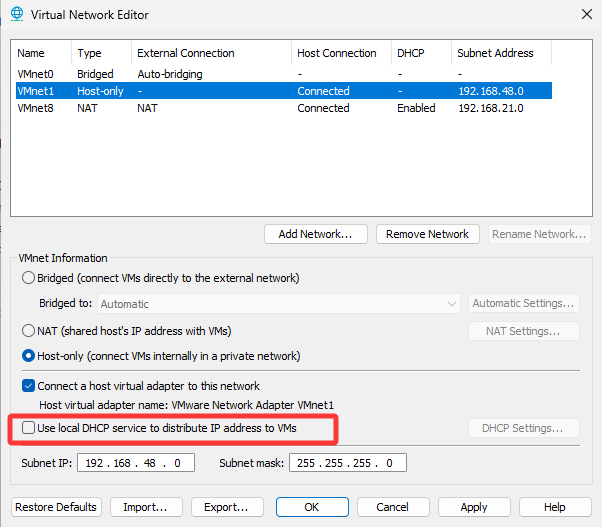
Figure 14-3 Disable the virtual machine's built-in DHCP functionality
You may launch several client machines for verification purposes. However, note that DHCP clients and servers must operate in the same network mode—Host-only mode—otherwise physical isolation occurs, preventing IP address acquisition. It is recommended to verify functionality with 1 to 3 client virtual machines to avoid excessive CPU and memory load on the physical host.
After confirming the DHCP server's IP address and other network configurations are correct, proceed to configure the Kea service program. First, open and edit lines 1–5 of the kea-dhcp4.conf file, entering the network interface names:
root@linuxprobe:/etc/kea# vim kea-dhcp4.conf
     1	{
     2	"Dhcp4": {
     3	    "interfaces-config": {
     4	        "interfaces": [ "ens160" ]
     5	    },
Lines 6–9 control the socket for communication with the server but serve little practical purpose; delete them directly:
     6	    "control-socket": {
     7	        "socket-type": "unix",
     8	        "socket-name": "/tmp/kea4-ctrl-socket"
     9	    },
Lines 10–13 configure the lease database, which is also unnecessary at this point. Delete them directly:
    10	    "lease-database": {
    11	        "type": "memfile",
    12	        "lfc-interval": 3600
    13	    },
Lines 14–21 define parameters for handling expired leases, such as the reclaim timer wait time and maximum number of reclaimed leases. These can also be removed:
    14	    "expired-leases-processing": {
    15	        "reclaim-timer-wait-time": 10,
    16	        "flush-reclaimed-timer-wait-time": 25,
    17	        "hold-reclaimed-time": 3600,
    18	        "max-reclaim-leases": 100,
    19	        "max-reclaim-time": 250,
    20	        "unwarned-reclaim-cycles": 5
    21	    },
Lines 22–24 configure lease renewal, rebind, and lifetime settings. These can be removed since Kea will use RFC 2131 defaults for reclamation and rebind without them. Proceeding to remove them:
    22	    "renew-timer": 900,
    23	    "rebind-timer": 1800,
    24	    "valid-lifetime": 3600,
Lines 25–29 specify global client DNS information, which is frequently used. Modify it according to Table 14-2:
    25	    "option-data": [
    26	        {
    27	            "name": "domain-name-servers",
    28	            "data": "192.168.10.1"
    29	        },
Lines 30–46 specify default domain names appended during hostname resolution. Since we don't need this, delete it entirely:
    30	        {
    31	            "code": 15,
    32	            "data": "example.org"
    33	        },
    34	        {
    35	            "name": "domain-search",
    36	            "data": "mydomain.example.com, example.com"
    37	        },
    38	        {
    39	            "name": "boot-file-name",
    40	            "data": "EST5EDT4\\,M3.2.0/02:00\\,M11.1.0/02:00"
    41	        },
    42	        {
    43	            "name": "default-ip-ttl",
    44	            "data": "0xf0"
    45	        }
    46	    ],
Lines 47–55 define client classes and their specific configurations, such as setting boot files for specific vendors. We don't need these, so delete them:
    47	    "client-classes": [
    48	        {
    49	            "name": "voip",
    50	            "test": "substring(option[60].hex,0,6) == 'Aastra'",
    51	            "next-server": "192.0.2.254",
    52	            "server-hostname": "hal9000",
    53	            "boot-file-name": "/dev/null"
    54	        }
    55	    ],
Lines 56–60 specify the scope and address pool. Refer to Table 14-2 for details:
    56	    "subnet4": [
    57	        {
    58	            "id": 1,
    59	            "subnet": "192.168.10.0/24",
    60	            "pools": [ { "pool": "192.168.10.50 - 192.168.10.150" } ],
Lines 61–66 specify the gateway address. Continue filling in:
    61	            "option-data": [
    62	                {
    63	                    "name": "routers",
    64	                    "data": "192.168.10.1"
    65	                }
    66	            ],
Lines 67–113 bind host IPs to MAC addresses (reservation functionality), which we'll use in the next section. For now, delete all content here:
    67	            "reservations": [
    68	                {
    69	                    "hw-address": "1a:1b:1c:1d:1e:1f",
    70	                    "ip-address": "192.0.2.201"
    71	                },
    72	                {
    73	                    "client-id": "01:11:22:33:44:55:66",
    74	                    "ip-address": "192.0.2.202",
    75	                    "hostname": "special-snowflake"
    76	                },
    77	                {
    78	                    "duid": "01:02:03:04:05",
    79	                    "ip-address": "192.0.2.203",
    80	                    "option-data": [ {
    81	                        "name": "domain-name-servers",
    82	                        "data": "10.1.1.202, 10.1.1.203"
    83	                    } ]
    84	                },
    85	                {
    86	                    "client-id": "01:12:23:34:45:56:67",
    87	                    "ip-address": "192.0.2.204",
    88	                    "option-data": [
    89	                        {
    90	                            "name": "vivso-suboptions",
    91	                            "data": "4491"
    92	                        },
    93	                        {
    94	                            "name": "tftp-servers",
    95	                            "space": "vendor-4491",
    96	                            "data": "10.1.1.202, 10.1.1.203"
    97	                        }
    98	                    ]
    99	                },
   100	                {
   101	                    "client-id": "01:0a:0b:0c:0d:0e:0f",
   102	                    "ip-address": "192.0.2.205",
   103	                    "next-server": "192.0.2.1",
   104	                    "server-hostname": "hal9000",
   105	                    "boot-file-name": "/dev/null"
   106	                },
   107	                {
   108	                    "flex-id": "'s0mEVaLue'",
   109	                    "ip-address": "192.0.2.206"
   110	                }
   111	            ]
   112	        }
   113	    ],
Lines 114–125 define the log level and log file information for the Kea service program. Since these are not currently needed, they can be removed:
   114	    "loggers": [
   115	    {
   116	        "name": "kea-dhcp4",
   117	        "output-options": [
   118	            {
   119	                "output": "/var/log/kea-dhcp4.log"
   120	            }
   121	        ],
   122	        "severity": "INFO",
   123	        "debuglevel": 0
   124	    }
   125	  ]
After streamlining the code, our final simplified version is as follows (only 26 lines), which is the truly useful part:
  1 {
  2 "Dhcp4": {
  3     "interfaces-config": {
  4         "interfaces": [ "ens160" ]
  5     },
  6     "option-data": [
  7         {
  8             "name": "domain-name-servers",
  9             "data": "192.168.10.1"
 10         },
 11     ],
 12     "subnet4": [
 13         {
 14             "id": 1,
 15             "subnet": "192.168.10.0/24",
 16             "pools": [ { "pool": "192.168.10.50 - 192.168.10.150" } ],
 17             "option-data": [
 18                 {
 19                     "name": "routers",
 20                     "data": "192.168.10.1"
 21                 }
 22             ],
 23         }
 24     ],
 25 }
 26 }
In both Red Hat certification exams and production environments, it is essential to add the configured Kea service to the system startup items. This ensures the service automatically starts upon the server's next reboot and successfully assigns IP addresses and other information to clients. We strongly recommend developing the habit of "configuring service programs and promptly adding them to startup items."
root@linuxprobe:/etc/kea# systemctl restart kea-dhcp4
root@linuxprobe:/etc/kea# systemctl enable kea-dhcp4
Created symlink '/etc/systemd/system/multi-user.target.wants/kea-dhcp4.service' → '/usr/lib/systemd/system/kea-dhcp4.service'.
After properly configuring the Kea service, you can launch the client to verify IP allocation. In daily operations, Windows 11 is the primary desktop OS. Simply configure the virtual machine's network adapter to "Host-only mode" as shown in Figure 14-4, ensuring both hosts share the same network mode. Then switch the Windows system's network mode to DHCP. After a brief wait, the network connection details interface (as depicted in Figure 14-5) will automatically retrieve network information. Extremely convenient!
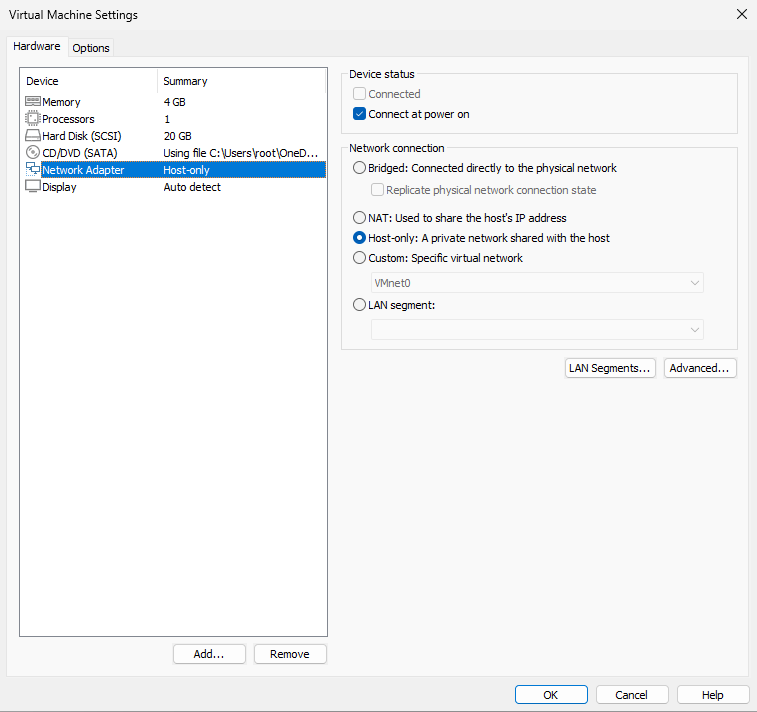
Figure 14-4 Configuring Network Adapter Mode
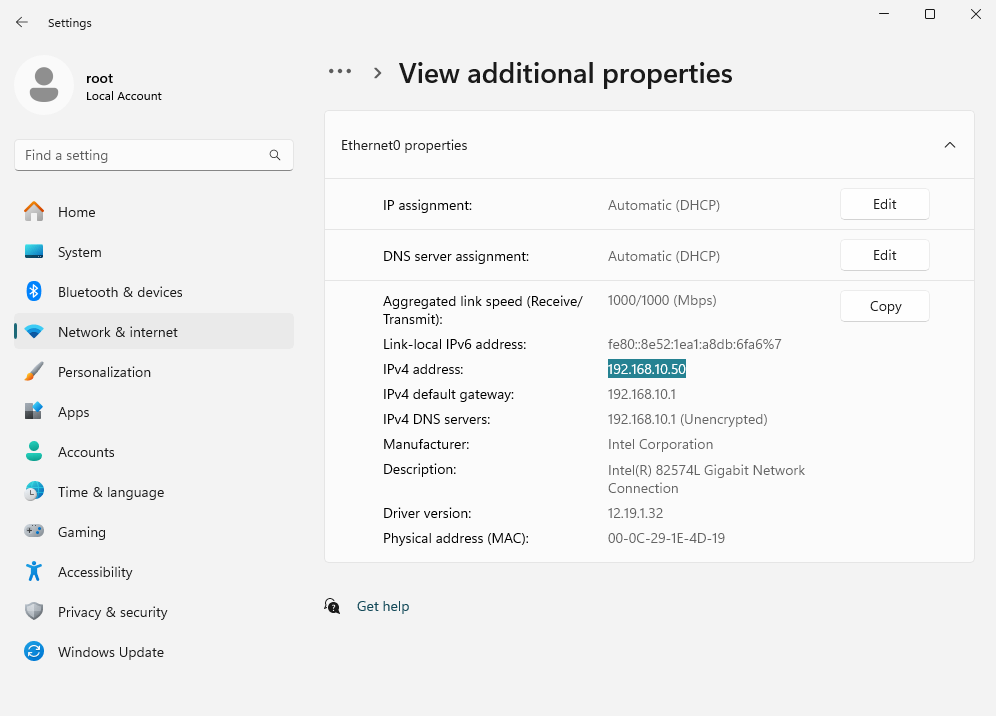
Figure 14-5 Automatically Acquired IP Address
When configuring the Kea service in a production environment, it may fail if DHCP traffic is blocked by the firewall. In such cases, execute the following commands:
root@linuxprobe:~# firewall-cmd --permanent --add-service=dhcp
success
root@linuxprobe:~# firewall-cmd --reload
success
Under normal circumstances, DHCP operation involves four stages, often summarized as DORA: Discover, Offer, Request, and Acknowledge (ACK). After a client successfully obtains an IP address and related network information, it broadcasts a gratuitous ARP request. Network devices, including the Kea service program, listen for this request. When the Kea service detects it, it marks the corresponding IP address as assigned and prevents it from being allocated to other hosts, fundamentally avoiding IP address conflicts.
14.4 Assigning Static IP Addresses
DHCP employs a mechanism called "reservation" to ensure specific devices within a LAN consistently obtain fixed IP addresses. In other words, the Kea service reserves certain IP addresses exclusively for matching devices. This resembles a high-end restaurant's reservation system, where a "Reserved" sign is placed on a table even before the guests arrive.
To bind an IP address to a specific host, you need that host's MAC address. This MAC address is a unique identifier on the network card, ensuring no conflicts occur. Examples of viewing the MAC address in Linux are shown in Figure 14-6, while examples for Windows are shown in Figure 14-7.
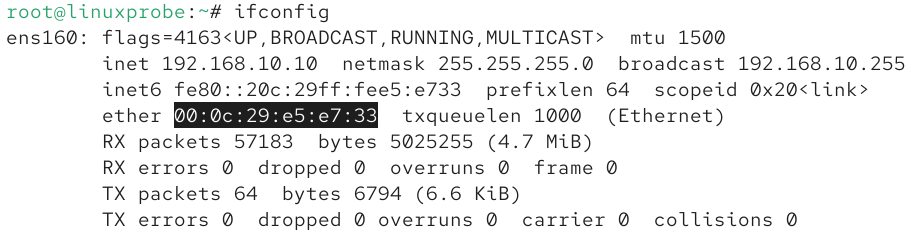
Figure 14-6 Viewing the NIC MAC Address in Linux
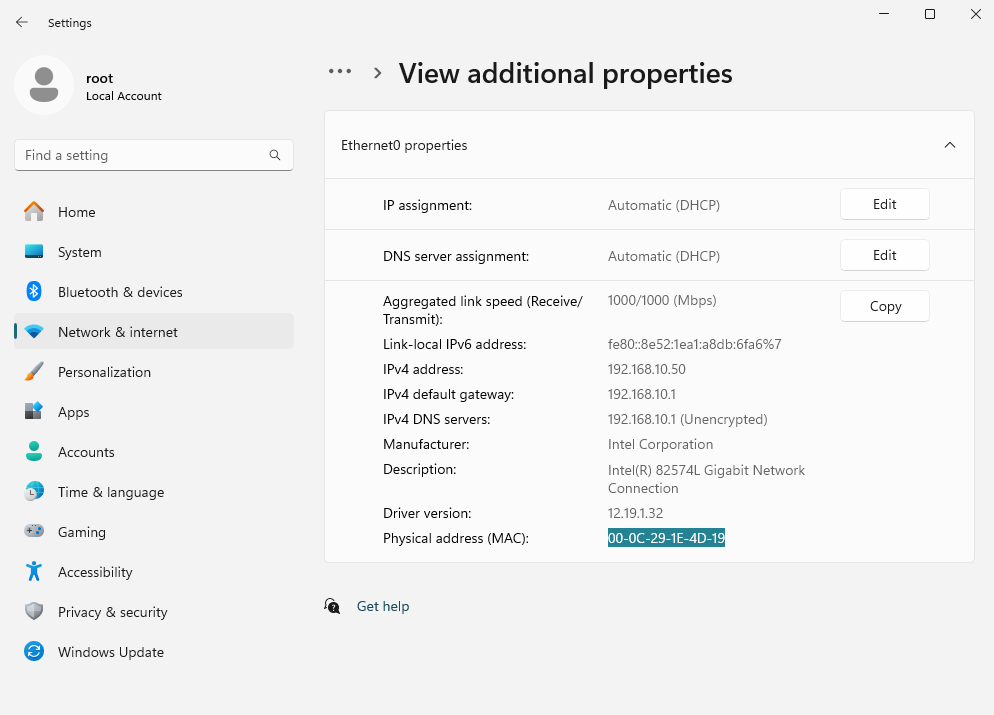
Figure 14-7 Viewing the MAC Address of a Network Card in Windows
In both Linux and Windows systems, the host's MAC address can be determined by examining the network status. In the Kea service program's configuration file, bind IP addresses to MAC addresses using the following format.
| MAC and IP Address Binding Code | |||
|---|---|---|---|
| "reservations": [ | |||
| { | |||
| "hw-address": | "MAC address", | ||
| "ip-address": | "IP address", | ||
| "hostname": | "hostname" | ||
| } | |||
| ] |
During offline lectures, after Instructor Liu Chuan finished explaining DHCP services, some students still scratched their heads. At first, I couldn't understand why—after all, the Kea service program is a straightforward experiment in Linux systems, with only about twenty lines of configuration parameters. How could anyone get it wrong? Later, I discovered the reason: some students were conducting IP-to-MAC address binding experiments using Windows systems.In Windows 7/10, MAC addresses appear in a format like 00-0C-29-16-3F-EF, using hyphens (-) as separators. However, in Linux and Windows 11, MAC addresses use colons (:) as separators.
root@linuxprobe:/etc/kea# vim kea-dhcp4.conf
{
"Dhcp4": {
    "interfaces-config": {
        "interfaces": [ "ens160" ]
    },
    "option-data": [
        {
            "name": "domain-name-servers",
            "data": "192.168.10.1"
        },
    ],
    "subnet4": [
        {
            "id": 1,
            "subnet": "192.168.10.0/24",
            "pools": [ { "pool": "192.168.10.50 - 192.168.10.150" } ],
            "option-data": [
                {
                    "name": "routers",
                    "data": "192.168.10.1"
                }
            ],
            "reservations": [
                {
                    "hw-address": "00:0C:29:16:3F:EF",
                    "ip-address": "192.168.10.88",
                    "hostname": "Windows11"
                }
        ]
        }
    ],
}
}
After confirming the parameters are correctly entered, save and exit the configuration file, then restart the Kea service.
root@linuxprobe:/etc/kea# systemctl restart kea-dhcp4
Note that if you recently assigned an IP address to this host, it won't immediately switch to the newly bound IP because its current lease hasn't expired. To see the binding take effect immediately, restart the client's network service as shown in Figure 14-8.
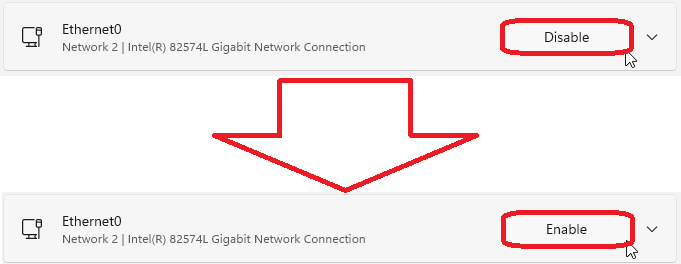
Figure 14-8: Restarting the Network Interface
The results will then be visible, as shown in Figure 14-9.
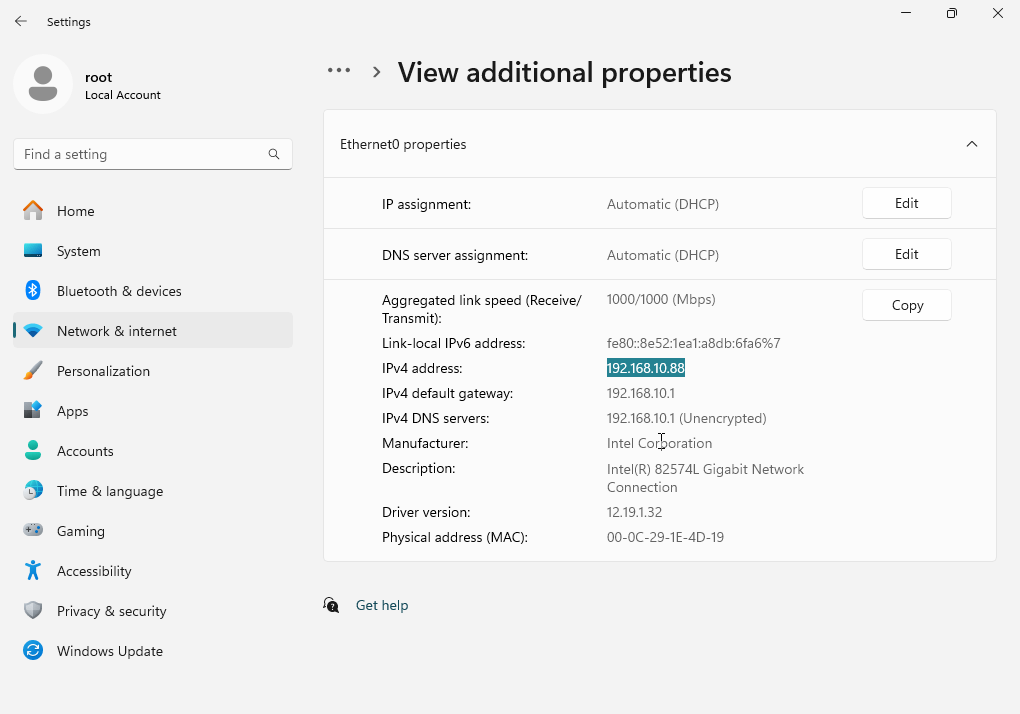
Figure 14-9 Viewing Network Interface Information After Binding
Review Questions
- Briefly describe the primary purpose of DHCP.
Answer: To automatically assign IP addresses and other parameters to devices within a local area network.
- What network resources can DHCP assign to clients?
Answer: It can assign IP addresses, subnet masks, gateway addresses, DNS addresses, and other information to clients.
- Is the actual IP address range available to users the scope or the address pool?
Answer: The address pool, because the scope also includes IP addresses that need to be excluded.
- Briefly describe the function of a "lease" in DHCP.
Answer: Leases consist of a default lease time and a maximum lease time. They automatically reclaim a host's IP address upon lease expiration to prevent IP address wastage.
- Briefly describe the function of "reservation" in DHCP.
Answer: By binding MAC and IP addresses, it assigns fixed network interface information to specific hosts. It can also be understood as a reservation service.
- Briefly describe the function of "exclusion ranges" in DHCP.
Answer: It ensures that IP addresses within the exclusion range are not assigned to clients.
- What information about the host must be bound to the IP address to guarantee that the host consistently obtains a fixed IP address?
Answer: The MAC address of the host's network interface.
- Can the MAC address viewed in Windows 10 be directly used for binding?
Answer: No, you must change the separator from a hyphen (-) to a colon (:).
- How can I determine a client's MAC address and assigned IP address without directly viewing client information?
Answer: After assigning network information, review the server's local log file /var/log/messages.
- If Kea service is confirmed running normally but clients consistently fail to obtain network information, what are common causes?
Answer: The host running the Kea service (i.e., the server) and the client may have incompatible network configurations, resulting in physical connectivity issues. Alternatively, the firewall may be blocking DHCP traffic.